
How to set up TTS donations on Kick.
October 30, 2026
TTS.fish is our product; this guide uses it.
“TTS donations” usually means a viewer pays and their message gets read out loud on stream. As of October 2026, Kick’s own KICKs show up as pinned chat messages rather than speech, so streamers set this up with an outside tool that takes the payment, turns the message into speech, and plays it through their broadcast software. This guide uses TTS.fish, which works on Kick through a plain link, so nothing has to connect to your Kick account.
One note on wording: on TTS.fish a viewer isn’t donating, they are buying a message. The money still lands in your Stripe account.
What you need
- A Kick channel and OBS (or any broadcast software).
- A TTS.fish account.
- A Stripe account for payouts. You don’t need one first: TTS.fish sets one up for you during onboarding.
Step 1: Create your link
- Sign up with your Kick username as your TTS.fish username, so your link is easy to remember: tts.fish/your_kick_name.
- Confirm your email, then connect Stripe. Onboarding usually takes a few minutes; have your ID and bank details ready.
Step 2: Set prices and voices
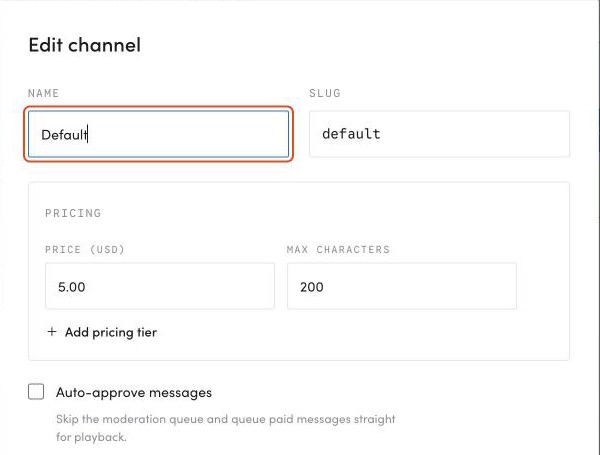
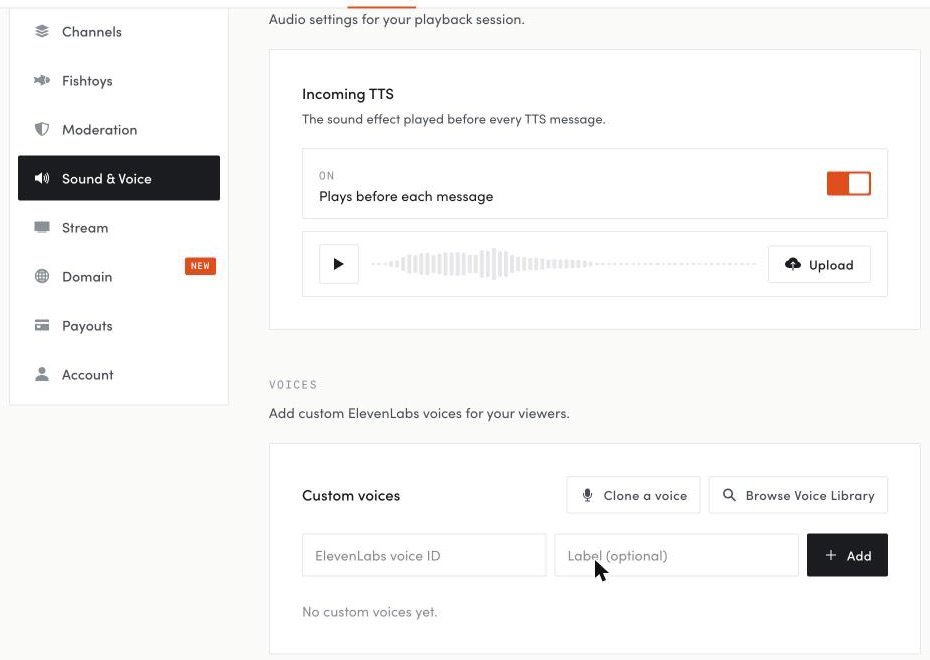
Choose a base price per message and a maximum length. Add price tiers if you want longer messages to cost more. Pick the voices viewers can use. Voices come from ElevenLabs: use the built-in set, add voices from the ElevenLabs library, or clone your own (you need the rights to any voice you add).
Step 3: Play messages on stream
Open your tts.fish page while logged in and click Start Listening, or run the desktop app for Windows, macOS, or Linux. Viewers can only pay while you’re listening. Capture that audio in OBS, then add your overlay URL as a browser source so played messages and your QR code show on screen. Our OBS setup guide walks through it.
Step 4: Share the link with Kick chat
Viewers don’t need a TTS.fish account. They open your link or scan the QR code, type a message, pick a voice, and pay with Stripe. Put the link in your Kick bio or About panels, and if you use a chat bot, have it post the link on a command (pick one your bot isn’t already using for something else). Keep the QR code on screen for viewers watching on a computer or TV. Streaming on Twitch too? The same link works there; see the Twitch guide.
Step 5: Set your moderation before the first stream
Every message waits for your approval unless you turn on auto-approve. Add a blocklist under Settings > Moderation, and set a cooldown if you do turn on auto-approve. Viewers are only charged when their message plays, so anything you reject or skip costs them nothing. See how to stop TTS trolls for a full setup.
Other ways to do TTS on Kick
- KickBot tipping charges 6% plus Stripe’s 2.9% + 30¢ and pays chargeback fees for you; its AI voices need Premium, and the free plan has four default voices. See our KickBot and VoxBot comparison.
- SpeakEZ is a TTS widget you buy once; its paid mode runs through a StreamElements tip page.
- A Streamlabs tip page with its built-in voices, if you don’t need AI voices.
What it costs
- No monthly fee. TTS.fish takes 7% + 30¢ per paid message, plus Stripe processing fees. Prices are in US dollars, and viewers must be 18 or older.
- Payout timing depends on your Stripe account’s schedule and any holds or verification requirements. Check Stripe for required actions.
- If a viewer charges back, the full message amount (our fee isn’t refunded) and Stripe’s dispute fee come out of your balance.